No such page
does not match a page in this wiki.
Every route is in the sidebar on the left — pick one, or press
Ctrl+K to search everything.
EmeraldNetwork wiki
Guides to the browser apps and account features. Some products have overview pages here, while their hosted implementations live outside this website's codebase.
Start here
What EmeraldNetwork is, and how this wiki is organised.
EmeraldNetwork is a multi-page website. Its apps run in the browser and save work locally. The Suite hub, Notes, Docs, Slides, Sheets, Flowchart and AI Chat routes are guarded by a sign-in check; supported EmeraldCore data syncs to the account service while signed in and online. Sheets workbooks use separate browser storage and are not part of account sync.
The service worker caches the offline page and a small set of shared shell assets. It tries the network for page navigations and shows the offline page if that request fails; it does not cache app pages or their scripts for a cold offline launch. An already loaded app may still be able to use its browser-side features offline, but sync and connected features need a connection. Keep exports of important work, especially Sheets workbooks, which must be moved by export and import.
Find what you need
The sidebar is sorted by what you are trying to do rather than by which product owns the feature, so you can read straight down the column you need.
Getting started
What the apps are, how this wiki is organised, and where everything lives.
- Start here — this page
- App map — every app at a glance
Create
Everything that produces a file you would send to someone.
- The hub — find, rename and share
- EmeraldNotes — quick rich text, to-dos and drawing
- EmeraldDocs — long documents with pages and a contents list
- EmeraldSlides — decks and presenting
- EmeraldSheets — formulas and charts
- Flowchart — visual programming and debugging
Ask and automate
Things that answer you, or act on your behalf.
- Text chat — models, search, files, images, quizzes
- Live voice — a spoken conversation
- Discord bot — command reference
Account
Sign in, sync supported work across devices, and manage your data.
- EmeraldNetwork account — profile, devices, security and data
Reference
Look-ups rather than walkthroughs.
- System status — is anything broken right now
- Shared reference — shortcuts, storage, limits
- EmeraldEssentials — the Minecraft plugin
Getting around
- Search — Ctrl+K. It covers every page at once and filters as you type; clearing it puts you back exactly where you were.
- Sidebar — the pages of whatever you are reading, with the current one marked by a coloured rail.
- On this page — appears in the sidebar when you focus a single page, listing its headings.
- Headings — click the # beside one to copy a link to that exact spot.
- Theme — the sun button switches light and dark.
- Right-click for the site's context menu, where enabled.
First moves in each app
If you would rather skip the reading and just try something, these are the two or three actions that show what each app is for.
| App | Try this first | Then try |
|---|---|---|
| Suite | Open the hub and make something in any app — it appears in the list immediately. | Right-click it for Rename, Copy link or Delete. |
| Notes | Ctrl+N, type, then add a To-Do and a Table from the ribbon. | Share Note and edit the same note from a second tab. |
| Docs | Import a .docx, or type a heading from Layout — that is what the table of contents is built from. | File → Export as PDF and compare with what you see on screen. |
| Slides | Take a theme from Design, add text, then switch to Slide Sorter. | F5 to present, with a transition applied. |
| Sheets | Click a cell and type =SUM(A1:A9). |
Insert → Create Chart, then export the sheet as XLSX. |
| Flowchart | Drop Terminal and Output, connect them, press Run. | Add a Breakpoint and Step through it watching the Variables panel. |
| AI Chat | Ask something ordinary. Then press + and attach a PDF. | Ask it to make an image, or to quiz you. |
| Discord bot | Invite it and run e!help. |
e!autorole, e!joinleave and e!log cover most onboarding. |
Before you start
.emeraldcore.
App map
Every app, what it is for, and where it lives.
The site includes browser apps, account features, and references to products whose implementations are hosted elsewhere. The comparison below focuses on the browser apps implemented in this repository.
The apps
 EmeraldSuite
The hub. One library holding everything the four apps below produce.
 EmeraldNotes
Rich text that stays out of the way. To-dos, tables, drawing, live sharing.
 EmeraldDocs
A word processor that paginates. Headings, contents, footnotes, PDF out.
 EmeraldSlides
Decks with themes, transitions, animations, presenter notes and PPTX out.
 EmeraldSheets
Spreadsheet editing with formulas, charts, comments, named ranges, and XLSX/CSV import and export.
EmeraldStudio Flowchart
Write a program as shapes, then run, step and debug it with breakpoints.
EmeraldBot AI Chat
Chat with model choices, web search, file attachments, image tools, quizzes and memories.
EmeraldBot for Discord
A Discord bot with a command reference for moderation, music, utilities and fun.
EmeraldEssentials
A Minecraft server plugin suite. Not finished, so its page is short.
EmeraldNetwork accountProfile, devices, activity history, storage and supported cross-device sync.
How the project is built
Each public page is an HTML file in the repository. Shared styles, images and
browser-side JavaScript live under assets/; there is no
site-wide application server in this repository. The authentication and account-sync
API is a separate Cloudflare Worker whose source is
cloudflare/auth.mjs. It issues signed sessions and
stores account records in Cloudflare D1 when the Worker is configured with a database.
The browser calls that API through assets/scripts/auth-client.js.
Most app data uses the shared emeraldcore.storage.suite
IndexedDB database through the storage adapter. Sheets uses a separate
emeraldcore.storage.suite.sheets database and is not
included in account sync. The Worker merges supported account snapshots and rejects
snapshots larger than 8 MiB. Static hosting and the Worker are separate deployment
pieces; this repository does not contain a build pipeline or Worker deployment configuration.
Side by side
| App | Good for | Needs internet | Saves where | Exports to |
|---|---|---|---|---|
| Suite hub | Finding, renaming and sharing files across the four apps | Sign-in and sync | Nothing of its own — reads the others | Deep links to any file |
| EmeraldNotes | Meeting notes, checklists, anything shared live | Sign-in, sync and live sharing | emeraldcore.storage.suite |
Share link, live session |
| EmeraldDocs | Reports, letters, anything printed or sent as a document | Sign-in, sync and some imports/exports | emeraldcore.storage.suite |
PDF, HTML, TXT, print |
| EmeraldSlides | Presenting, pitches, training | Sign-in, sync and some imports/exports | emeraldcore.storage.suite |
PPTX, PDF, SVG, print |
| EmeraldSheets | Data, budgets, anything that needs arithmetic | Sign-in and XLSX import/export | emeraldcore.storage.suite.sheets |
XLSX, CSV, print |
| Flowchart | Teaching logic, prototyping algorithms | Sign-in and sync | emeraldcore.storage.suite |
.emeraldcore, PNG |
| AI Chat | Anything you would ask a colleague | Sign-in and AI requests | emeraldcore.storage.suite |
Share link, .json |
| Account | Cross-device sync and account management | Sign-in and sync | Local IndexedDB plus account sync | Account data as .emeraldcore |
| Live voice | Hands-free conversation | Always | Saved as a normal chat | Inherits the chat exports |
| Discord bot | Running a community server | Always | On Discord, not your browser | Not applicable |
Choosing between the four apps
These overlap more than they look. If you are deciding where to put something, these are the questions that separate them.
| If you want to… | Use | Because |
|---|---|---|
| Jot something down and find it again | Notes | Fastest to start, no layout decisions to make. |
| Something a person will print or PDF | Docs | Only Docs paginates into pages with margins and a contents page. |
| Explain something out loud to people | Slides | Presenter notes, transitions and a full-screen present mode. |
| Anything involving totals | Sheets | The other three have no arithmetic at all. |
| Work on the same note with someone now | Notes | Live collaboration only exists in Notes. |
| Work on the same document with someone now | — | Docs comments are stored with the document but are not live collaboration. |
The hub
One home for every note, document, presentation and spreadsheet you create.
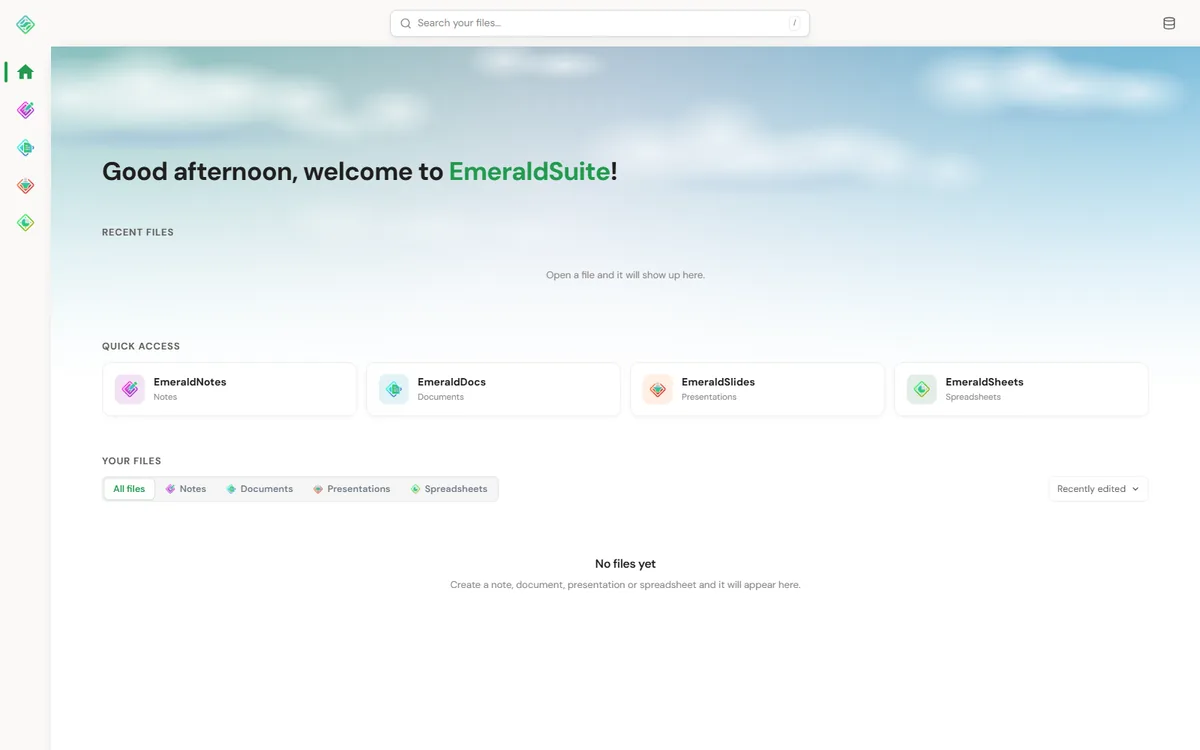
The hub is the answer to "where did I put that?". It reads the index of all four apps out of shared storage and renders one combined library, so a note written this morning and a spreadsheet from last week sit in the same list.
It does not hold anything itself. Renaming or deleting here reaches into the app that owns the file, so the two never disagree.
Finding and tidying your files
- Open /emeraldsuite. Anything you have created appears under Your files.
- Filter with Notes, Documents, Presentations or Spreadsheets. Filters combine — pick two to narrow further.
- Type in Search your files… to match on the title. Recent files and the quick-create tiles collapse so results sit higher up.
- Sort by Recently edited, Name (A–Z) or Name (Z–A).
- Hover a card for Open, Rename and Delete, or right-click for the full menu including Copy link.
- Click the storage icon in the top bar to see how much of your browser quota is in use.
Layout
| Area | What you get |
|---|---|
| Top bar | Logo (goes to home), the Search your files… box with a / hint, and the Storage button. |
| Left rail | Home, Notes, Documents, Slides, Sheets. Icons with labels underneath. |
| Greeting | Time-aware: Good morning / afternoon / evening, welcome to EmeraldSuite! |
| Recent files | Your three most recently edited files as large cards. Empty state: Open a file and it will show up here. Collapses while you type in search. |
| Quick access | Four create tiles: EmeraldNotes, EmeraldDocs, EmeraldSlides, EmeraldSheets. |
| Your files | The full library with filters, sorting and per-file actions. |
Filters and sorting
| Control | Options | Behaviour |
|---|---|---|
| Type filters | All files Notes Documents Presentations Spreadsheets | Multi-select and additive — pick Notes and Documents to see both. All files clears the selection. |
| Sort | Recently edited · Name (A–Z) · Name (Z–A) | Default is Recently edited, newest first. |
| Search | Title match | Case-insensitive substring. Recent files and Quick access collapse while searching so results are not pushed down. |
Working with a file
| Action | How |
|---|---|
| Open | Click the card, or Open in the right-click menu. Navigates in place. |
| Open in new tab | Right-click → Open in new tab. Useful for two documents side by side. |
| Copy link | Right-click → Copy link. Copies a deep link of the form /notes?owned=abc123 that opens that exact file. |
| Rename | Right-click → Rename, or the pencil icon on hover. Max 120 characters; the new name is written back into the app as well, not just the index. |
| Delete | Right-click → Delete. Warns that it also removes the file from any open tabs. This cannot be undone. |
Hovering a card also exposes three icon buttons — Open in {App}, Rename and Delete — so you rarely need the right-click menu at all.
What each card shows
- A CSS thumbnail drawn in the app's style — note lines, a document page, a slide frame, or a spreadsheet cell grid.
- Type and size: Note · 214 words, Presentation · 12 slides, Spreadsheet · 3 sheets.
- Relative time: just now, 4m ago, 3h ago, yesterday, 12d ago, or a date.
Storage meter
The Storage button in the top bar opens a Storage popup with Used, Available, a proportional bar and a percentage line. It reads the browser's own quota via the Storage API, so the number reflects your whole origin, not just the suite. Browsers that do not expose a quota show Storage estimate unavailable in this browser.
This is an origin-wide browser estimate. The popup does not identify which app or file accounts for the usage.
Keeping the hub in sync
- Open the same app in two tabs and edits propagate both ways through a browser broadcast channel.
- The hub refreshes on window focus, on tab visibility change, on load, and every 60 seconds.
- Renaming or deleting in the hub updates the real document, not just the list entry.
EmeraldNotes
Rich text notes with tables, to-do lists, drawing, images and live collaboration.
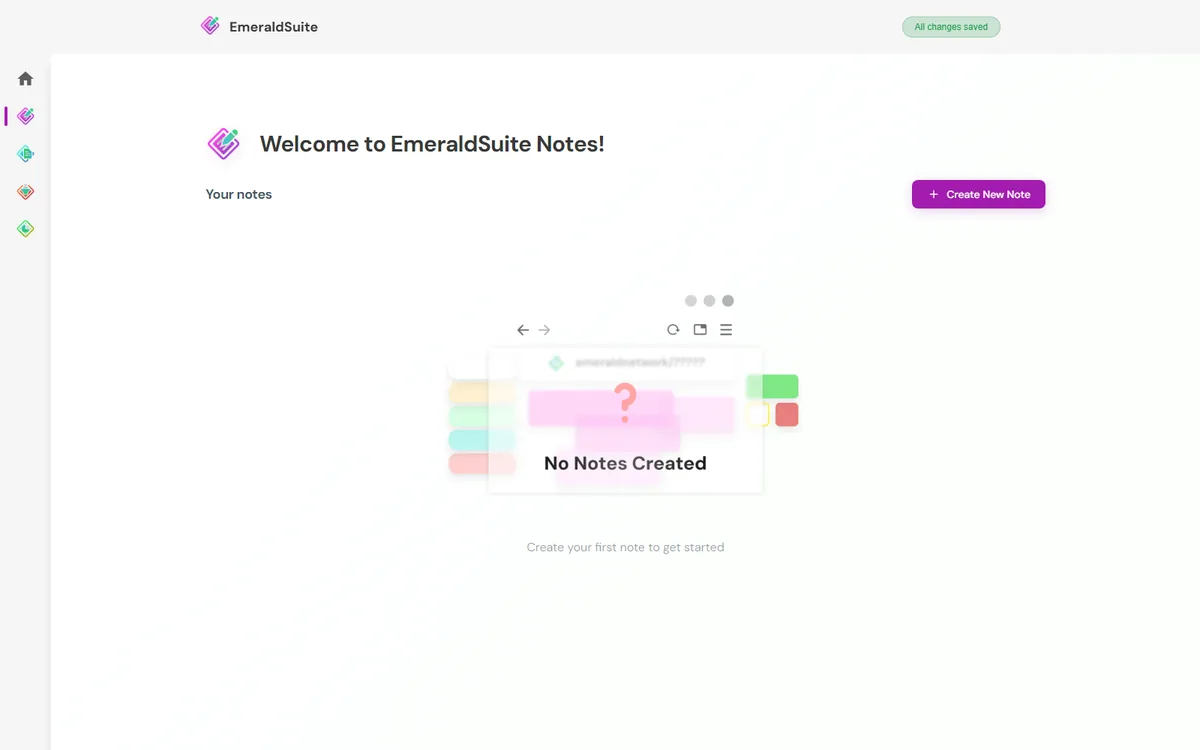
Notes is the app you will open most often, because it is the one that asks for no decisions. No layout, no styles to choose, no page setup — open it and type. The formatting is there when you want it and invisible when you do not.
It is also the only app with live collaboration, so a note is the quickest thing to actually share with someone rather than just hand over a file.
A note from empty to shared
- Open /notes and press Ctrl+N, or click New Note in the sidebar.
- Type a title, then start writing underneath it. Everything saves on its own — there is no save button to press.
- Use the ribbon when you need structure: Table for a grid, To-Do for a checklist, Image for a screenshot.
- Press Ctrl+F to find and replace something you wrote earlier.
- Click Share Note, choose Can edit or Can view, and copy the link.
- Open that link in a second tab. Typing in either one appears in the other, with the other person's cursor visible.
Getting around
| Part | What it does |
|---|---|
| Sidebar | Title Notes, a New Note button, and one row per note showing title, a short preview and when it changed. Collapsible; the collapsed state is remembered. On phones it is a swipe-in drawer. |
| Title bar | Click-to-edit title (70 characters typed, 40 stored), note colour picker, Share Note, Export Note, Delete Note. |
| Editor | The text area itself. The status bar under it shows Ln, Col, live word count and character count. |
| Save pill | Saving… → All changes saved, or Error saving. |
The ribbon
| Group | Controls |
|---|---|
| History | Undo, Redo — greyed out when there is nothing to undo. |
| Clipboard | Cut, Copy, Paste — these go through the async clipboard API, so they carry formatting into other apps. |
| Font | Font family, font size, Bold, Italic, Underline, Strikethrough, Subscript, Superscript, text Colour (13 swatches), Highlight (11 colours + Clear). |
| Paragraph | Align Left / Center / Right, Bullet List, Numbered List. |
| Insert | Table, To-Do, Draw, Image. |
| Edit | Find. |
Fonts available
| Category | Includes |
|---|---|
| Sans-Serif | Arial, Helvetica, Verdana, Roboto, Open Sans, Lato, Montserrat, Poppins, Raleway, Nunito, Ubuntu, Work Sans, Oswald and more |
| Serif | Georgia, Times New Roman, Merriweather, Lora, Libre Baskerville, DM Serif Display, Spectral |
| Monospace | Courier New, Fira Code, Inconsolata, IBM Plex Mono, DM Mono, Source Code Pro |
| Handwriting | Dancing Script, Pacifico, Lobster, Caveat, Kalam, Great Vibes, Sacramento |
Font sizes run 8 – 72. On a phone the ribbon switches to a compact icon-only layout with a reduced font list.
Tables
- Click Table in the ribbon and pick a size from the grid (up to 8 × 8). The first row becomes a header row.
- Click any cell to reveal the floating table toolbar above the table.
- Use Add Row Above / Add Row Below / Delete Row and Add Column Left / Add Column Right / Delete Column.
- Drag the right edge of a column to resize it (minimum 40px). Widths are saved with the note.
Deleting the last row removes the whole table. Deleting the last column does nothing, so you cannot accidentally destroy a table.
To-do lists
- Click To-Do to drop in a checkbox item.
- Type the text next to the checkbox.
- Press Enter for another item, Tab to indent it, Shift+Tab to outdent.
Drawing
- Click Draw in the ribbon. A toolbar appears with Pen, Eraser, nine colours and four sizes — Thin, Medium, Thick, Extra Thick.
- Drag on the page to draw. Use Move to reposition the drawing or the corner handle to resize it.
- Clear wipes the canvas if you want to start over.
- Click ✓ Done. The drawing is cropped to its content, saved as a PNG and placed into the note as an image.
Drawings become part of the note, so they show up in shared links and exports like any other image.
Images
- Insert → Image opens your file picker, and you can also drag image files straight onto the editor or paste one from the clipboard.
- Maximum size is 25 MB per image.
- Click an image to select it; a corner handle resizes it with the aspect ratio locked.
- Images are stored inline, so they travel with the note and count towards your storage quota.
Find & replace
| Control | Purpose |
|---|---|
| Find… / Replace with… | Two fields at the bottom of the editor. |
| ‹ / › | Previous / next match. Enter and Shift+Enter do the same. |
| Replace / All | Replace the current match, or every match. The counter confirms how many were replaced. |
| Case sensitive | Turns on exact-case matching. |
Open it with the ribbon Find button or Ctrl+F. Esc closes it.
Note colours
The colour button next to the title sets the page background: Default, Light Pink, Light Blue, Light Green, Light Yellow or Light Purple.
Sharing a note
Export as link
Export Note puts the title, content and colour into a compressed token in the ?share= URL. A signed-in recipient with the link can open the note and import a copy. The note is not uploaded to account storage, but the token is part of the page URL when someone opens the link.
Live collaboration
Share Note opens a real-time session. Choose Can edit or Can view, copy the collaboration link and share it. Both people need an EmeraldNetwork account and must be signed in. You can watch who is in the session and close it at any time.
Live sharing needs an internet connection, and both of you have to be online at the same time — it is a session between two open browsers, not a file that gets handed over. Export Note can create a link offline after you have signed in and opened Notes; the recipient needs to sign in and connect to open the link. Other Notes editing works offline while the app is open.
Keyboard shortcuts
| Shortcut | Action |
|---|---|
| Ctrl+N | New note |
| Ctrl+S | Save immediately instead of waiting for autosave |
| Ctrl+B / I / U | Bold / italic / underline |
| Ctrl+F / H | Find & replace |
| Ctrl+Z / Y | Undo / redo |
| Enter / Tab | New / indented to-do item |
| Esc | Close Find, the table picker or the delete dialog |
Autosave, undo and limits
- Autosave runs one second after you stop typing; Ctrl+S forces it.
- Undo history is the browser's own, so it is per-note and is lost when you close the note.
- Notes have no folders and cannot be reordered — the list is newest first.
- Notes editing works offline once the page is loaded. Account sync and live collaboration resume when the connection returns; web fonts also need a connection.
EmeraldDocs
A word processor with real pages — headings, contents, footnotes, comments and PDF export.
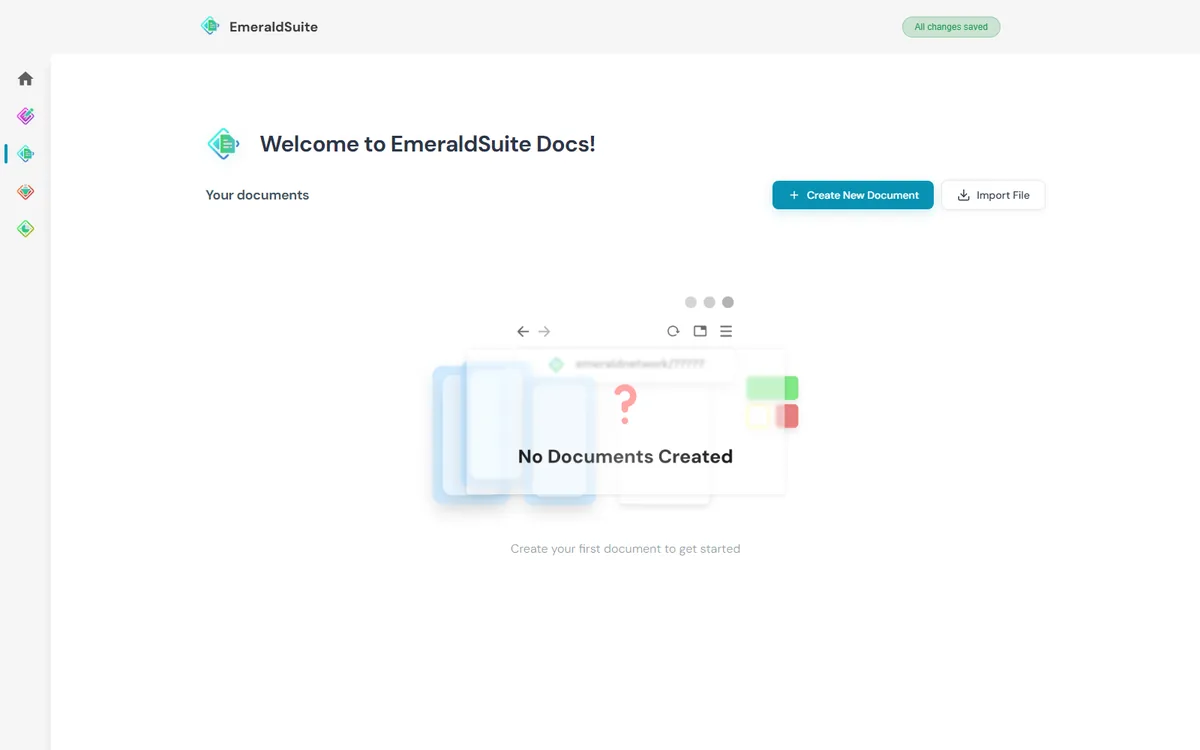
Docs is the app to reach for when the output is going to be read rather than glanced at. It paginates your content into pages with margins, which is what makes the table of contents, footnotes and PDF export behave the way a reader expects.
Real pagination
Docs is not one long scrolling page — it lays your content out across actual page sheets (A4 by default). Blocks move between pages as you type, and a paragraph that is too tall for the remaining space is split at a word boundary rather than mid-word. Inserted page breaks force a hard boundary.
| Page size | Dimensions |
|---|---|
| Letter | 8.5″ × 11″ |
| Legal | 8.5″ × 14″ |
| Executive | 7.25″ × 10.5″ |
| A4 | 21 × 29.7 cm |
| A5 | 14.8 × 21 cm |
| A6 | 10.5 × 14.8 cm |
| Envelope #10 | 4.125″ × 9.5″ |
Choose a size from Layout → Size and orientation from Layout → Orient. Margins come from the Page Margins dialog with Narrow, Default, Moderate and Wide presets plus per-side centimetre values. Ctrl+Shift+M cycles the presets.
Ribbon tabs
| Tab | What lives there |
|---|---|
| File | Opens the backstage overlay: rename, delete, export, statistics, version history. |
| Home | Undo/redo, cut/copy/paste, fonts, sizes, colours, highlight, alignment, lists, indent. |
| Insert | Links, images, tables, horizontal rule, page break, drop cap, watermark, symbols, cover page, section break, equation, SmartArt, screenshot, drawing. |
| Layout | Title and heading styles, page margins, orientation, page size, 1–3 columns, header, footer, page numbers. |
| References | Table of contents, footnotes, endnotes, citations, bibliography, index entries, index. |
| Review | Document statistics, read aloud, accessibility checker, find, go to, comments. |
| View | Zoom controls, ruler, guidelines, outline panel, page navigator. |
| Image Format | Appears automatically when you select an image — filters, brightness, contrast, saturation, hue, border and transparency. |
Inserting content
Table
Pick up to 8 × 8 from a grid picker; the first row becomes a header. Pressing Tab in the last cell appends a new row automatically.
Cover page
Title, subtitle, author and date in one of four styles — Classic, Modern, Minimal, Accent Bar. Inserted at the top with a page break after it.
Equation
A LaTeX-style editor with 14 presets — Pythagoras, E = mc², fractions, roots, sums, integrals, limits, derivatives, logs — and a live preview.
SmartArt
Insert a diagram and then edit the node text directly in the page.
Screenshot
Capture a region of your screen and drop the image straight into the document. Your browser will ask which screen or window to share.
Symbols
A persistent bottom bar with stars, marks, arrows, maths, Greek letters, numbers and special characters — 90+ glyphs in total.
Watermark
Overlay text behind the whole document. Presets: DRAFT, CONFIDENTIAL, COPY, SAMPLE — or your own, removable at any time.
Drop cap
Toggle a large first letter on the current paragraph. Click again to turn it off.
References
| Control | Result |
|---|---|
| TOC | Builds a table of contents from every heading. Click an entry to jump; right-click for more options. |
| Footnote | Numbered marker at the cursor and the note text at the bottom of that page, plus a collected section at the end. |
| Endnote | Numbered marker at the cursor and the text only in the Endnotes section at the end of the document. |
| Cite | Inserts a citation in parentheses, e.g. (Rowling, 1997). |
| Biblio | Inserts a formatted Bibliography heading with your entries listed underneath. |
| Mark / Index | Flag a phrase as an index entry, then insert the index at the end. |
Open References-related notes in the right-hand Footnotes & Endnotes panel, where you can add more or delete existing ones. Deleting renumbers everything automatically.
Reviewing
- Stats opens Document Statistics — words, characters, paragraphs, reading time, plus a writing-time breakdown and a word-count goal. Reaching a goal quarter fires a toast; hitting the goal itself celebrates.
- Read aloud uses your browser's speech voices. It reads the first 3,000 characters and toggles to Read aloud stopped.
- Accessibility scans for images missing alt text, ambiguous link text like "click here", empty headings and poor colour contrast, and offers one-click fixes.
- Comment attaches a note to your selection. Comments support replies, resolve/unresolve and delete.
Side panels
| Panel | How to open | What it does |
|---|---|---|
| Outline | View → Outline or Ctrl+G | Every heading with H1–H4 badges and a filter box. The heading you are on is highlighted and scrolled into view. |
| Pages | View → Pages | True-to-size thumbnails of every page; click one to jump. |
| Footnotes | Automatic when you add one | Lists footnotes and endnotes, with add and delete controls. |
Find, replace and go to
Find (Ctrl+F) and Find & Replace (Ctrl+H) share one bar. It supports Match case, Whole word and Regex, and shows an n / N counter. The same bar has a Go to row that accepts a page number, a line number or the next heading.
Importing
Use Import File on the welcome screen, or drop the file onto the page. Each import becomes a new document titled after the file.
| Format | How it is handled |
|---|---|
| One Docs page per PDF page, at each page's own size and orientation — what you see is what you get, including documents that mix portrait and landscape sheets. Images, tables, rules and colours stay exactly as drawn, and every word, emoji included, is live text you can click and edit in its original font, size, weight and colour. Needs an internet connection the first time. Password-protected files are not supported. | |
| .docx | Full-fidelity import that keeps Word's own layout: theme fonts, named styles and their inheritance, indents, line spacing, alignment, colours and highlights, superscript/subscript, small caps and letter spacing, numbered and bulleted lists, tables with their column widths, cell shading and merged cells, images at their true size and rotation, hyperlinks, page breaks, headers and footers, and the section's page size, orientation and margins. |
| .odt | Text and paragraphs are read; headings arrive as plain paragraphs. |
| .rtf | Best-effort text extraction. |
| .doc | Docs reads what the file really is. A .docx that was merely renamed to .doc imports at full .docx fidelity, and files that are really RTF or HTML are imported as such. A genuine Word 97-2003 binary .doc keeps its layout in a table Docs cannot read, so only its text is recovered — re-save it as .docx for a faithful import. |
| .md / .markdown | Headings, fenced code, horizontal rules, block quotes and both list styles. |
| .html / .htm | Sanitised and imported as-is. |
| .txt | One paragraph per line. |
Exporting
| Format | Where | Notes |
|---|---|---|
| .txt | File → Export as Text | Plain text of the whole document. |
| .html | File → Export as HTML | Self-contained file with its own styles — opens anywhere. |
| File → Export as PDF | One page per sheet at true paper size. Needs an internet connection the first time. | |
| Print button or Ctrl+P | Opens a preview bar with Exit Preview and Print. Choose "Save as PDF" in the browser dialog for a vector-friendly copy. |
Version history
Docs snapshots your document automatically while you edit and keeps the 10 most recent versions. Open File → Version history to see when each was taken and Restore any of them.
Keyboard shortcuts
| Shortcut | Action |
|---|---|
| Ctrl+S / P | Save now / print |
| Ctrl+B I U Z Y | Bold, italic, underline, undo, redo |
| Ctrl+F / H | Find / find and replace |
| Ctrl+K | Insert link |
| Ctrl+G | Toggle the outline panel |
| Ctrl+Enter | Insert a page break |
| Ctrl+Shift+M | Cycle margin presets |
| Ctrl++ / − / 0 | Zoom in / out / reset to 100% |
| Ctrl+wheel | Zoom |
| Tab | Next table cell (adds a row at the end) |
| Esc | Close the topmost dialog, then Find, then the outline and page panels |
Autosave, links and limits
- Autosave runs about 0.8 seconds after you stop typing; the pill says Saving…, then All changes saved.
- Zoom ranges from 20% to 400%. Fit To Window fits the page width to the scroll area.
- Links need Ctrl+click (or a plain click in Print Preview) to open — a normal click just puts the caret there.
- Bare domains are turned into
https://URLs automatically. - Typing automatically fixes common slips such as
teh→theanddont→don't. - Docs has no dark mode and no document themes — accent colours are fixed.
EmeraldSlides
Presentations with 74 shapes, 38 transitions, animations, notes and PowerPoint export.
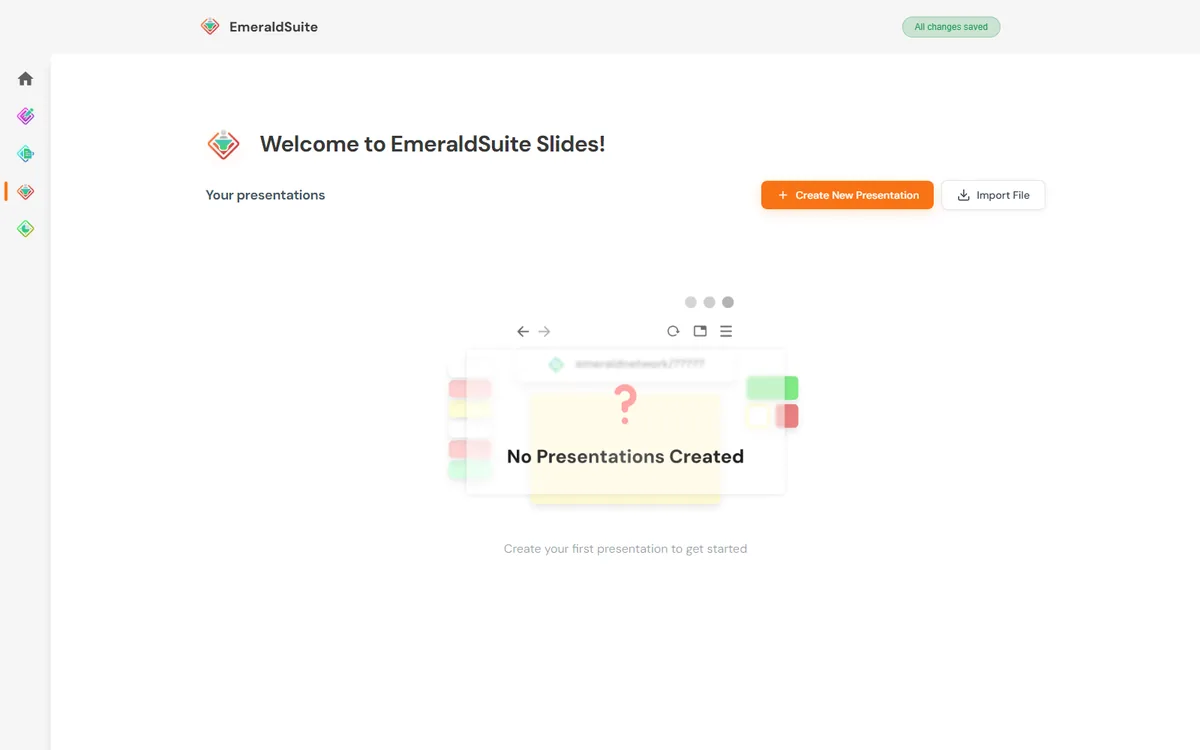
Slides is built around the last five minutes of making a deck: putting it in front of people. That is why transitions, animations and presenter notes are first-class here, rather than the kind of thing you add afterwards in another tool.
It imports and exports PowerPoint files, so a deck can start here and finish somewhere else without being flattened into pictures.
Empty deck to a presented one
- Open /slides and click Create New Presentation, or the ribbon's New.
- Go to Design and pick a theme — it applies to every slide at once, so start here rather than restyling later.
- Add text with Insert → Text, then click an element once to select it and twice to edit its words.
- Switch to View → Slide Sorter to see the whole deck at once. Drag thumbnails to reorder.
- Open Notes Page and write what you want to say for each slide. The notes stay with the deck.
- Apply a transition from the Transitions tab, set it to advance after a delay, then Apply to All.
- Press F5 to present from the current slide, or F11 from the beginning.
Editor layout
| Area | Contents |
|---|---|
| Left sidebar | Collapse toggle, the presentation title field, and the slide thumbnail list — drag a thumbnail to reorder slides. |
| Ribbon | File, Home, Insert, Design, Transitions, Animations, View, plus contextual Shape Format and Image Format tabs. |
| Slide canvas | 960 × 540. Click an element to select it; double-click text to edit it; drag to move. |
| Status bar | Slide N of M, zoom level, what is selected, and the presenter-notes toggle. |
Slides and elements
| Ribbon | Control | What it does |
|---|---|---|
| Home | New, Duplicate, Delete | Add, clone or remove a slide. Delete is undoable. |
| Insert | Text | Drops in a text box and starts editing immediately. |
| Insert | Image | Opens the file picker. The image is scaled to fit and centred. |
| Insert | Video / Audio | Embedded players with their own controls, sized to the media's aspect ratio. |
| Insert | Shapes | 74 shapes grouped into Rectangles, Basic, Block Arrows, Stars, Callouts, Flowchart and Lines. |
| Insert | Icons | A searchable icon library with category tabs — scroll to load more. |
| Insert | Link | Attaches a URL to the selected element. Existing links can be removed from the same dialog. |
| Insert | Comment | Attaches a comment to a slide; comments show as dots on the thumbnail. |
| Insert | Symbol / Draw | Symbol bar and freehand drawing. Unlike Docs, drawings are saved with the slide. |
| Shape Format | Fill, Stroke, width, Bring to Front, Send to Back, Duplicate, Delete | Appearance and stacking for the selected shape. |
| Image Format | Filters, brightness, contrast, saturation, hue, border, transparency | Same controls as Docs. Hold Shift while dragging a handle to crop instead of resize. |
Design
- Themes apply a full look to every slide at once. Six appear in the ribbon; More opens the full gallery.
- Templates replace the current slide's elements with a layout. More opens the full gallery, and a preview shows the category and layout before you apply it.
- Background applies instantly — 34 solid colours plus 12 gradients. Open Designer offers eight ready-made slide layouts.
Gradients include Purple Dream, Sunset, Ocean, Dark Slate, Golden Hour, Cotton Candy, Midnight Sky, Silver Mist, Fire, Christmas, Warm Glow and Deep Ocean.
Transitions
Pick a transition from the ribbon strip or the More gallery. Clicking a thumbnail applies it and previews it straight away.
| Family | Transitions |
|---|---|
| Subtle (12) | None, Fade, Push, Wipe, Split, Reveal, Cut, Cover, Uncover, Random Bars, Shape, Blinds |
| Exciting (21) | Morph, Fade Black, Zoom, Cube, Flip, Gallery, Vortex, Newsflash, Honeycomb, Glitch, Dissolve, Checkerboard, Clock, Ripple, Doors, Switch, Curtains, Fracture, Peel Off, Glitter, Comb |
| Dynamic Content (5) | Pan, Rotate, Orbit, Fly Through, Conveyor |
| Timing control | Values |
|---|---|
| Duration | 0.1 – 10 seconds |
| Advance | On Click or After — with an auto-advance delay of 1 – 600 seconds |
| Apply to All | Copies the transition to every slide |
Animations
Add one of six animation types — Appear, Fade In, Fly In, Zoom, Spin, Bounce — then control it from the Animations tab:
| Control | Values |
|---|---|
| Start | On Click · With Previous · After Previous |
| Duration | 0.1 – 10 seconds (default 0.5) |
| Delay | 0 – 60 seconds |
| Move Earlier / Move Later | Reorder the build order of animations on the slide |
| Animation Pane | A right-hand list of every animation on the slide; click an entry to select the element it targets, or remove it. |
Views and presenting
| View | What it is for |
|---|---|
| Normal | Edit one slide at a time. |
| Slide Sorter | See every slide as a grid — the fastest way to reorder or spot a duplicate. |
| Notes Page | Shows the presenter-notes panel under the current slide. |
| Immersive Reader | A distraction-free read-only view of the current slide's text, with a Read Aloud button. |
| Shortcut | Action |
|---|---|
| F11 | Present from slide 1 |
| F5 | Present from the current slide |
| → ↓ Space | Next slide while presenting |
| ← ↑ | Previous slide while presenting |
| Esc | Exit presenting |
The presenting toolbar at the bottom has previous, a slide counter, next and exit. Clicking a linked element opens its URL — no modifier needed in Present mode.
Presenter notes
Toggle the notes panel with the Notes button at the right of the status bar or via View → Notes Page. Notes are per slide, print with the deck's PDF export, and are not exported to PPTX.
Moving things around
- Arrow keys nudge the selected element by 1px; hold Shift for 10px.
- Ctrl+D duplicates an element, offset slightly so you can tell them apart.
- Ctrl+C / X / V copy, cut and paste elements.
- Delete removes the selection; Esc clears it, or leaves text editing first.
- Ctrl+wheel zooms the canvas.
Importing and exporting
| Direction | Format | Notes |
|---|---|---|
| Import | .pptx | Text, font sizes, bold, shapes, images and backgrounds are read in. Empty slides are skipped. |
| Import | Each page is rendered to an image and placed on its own slide. | |
| Export | PPTX | Real PowerPoint output via the File tab: background, text, shapes and images. Video, audio, drawings, links, comments, transitions and animations are dropped. |
| Export | Landscape slides at 297 × 167.25 mm, one per page. | |
| Export | SVGs | Downloads slide_1.svg, slide_2.svg… one vector file per slide. |
Defaults and limits
- Autofit title numbers: the first deck is Untitled Presentation, the second Untitled Presentation 2, and so on.
- The Slide Sorter view closes the presenter-notes panel; turn notes back on when you return to Normal.
- Present mode can be used in fullscreen — Esc collapses an expanded video first and exits second.
- Undo history (50 steps) belongs to the presentation and is cleared when you open or create another deck.
EmeraldSheets
A spreadsheet app with formulas, charts, comments, named ranges and XLSX/CSV import and export.
Sheets is the only app in the suite that does arithmetic, and it is a spreadsheet: formulas, named ranges, cell comments and charts, with genuine XLSX import and export rather than a CSV dressed up as one.
If your data would end up in Excel eventually, build it here. The file you export opens there with its formulas, colours, formatting and column widths intact — and a workbook from Excel comes in the same way.
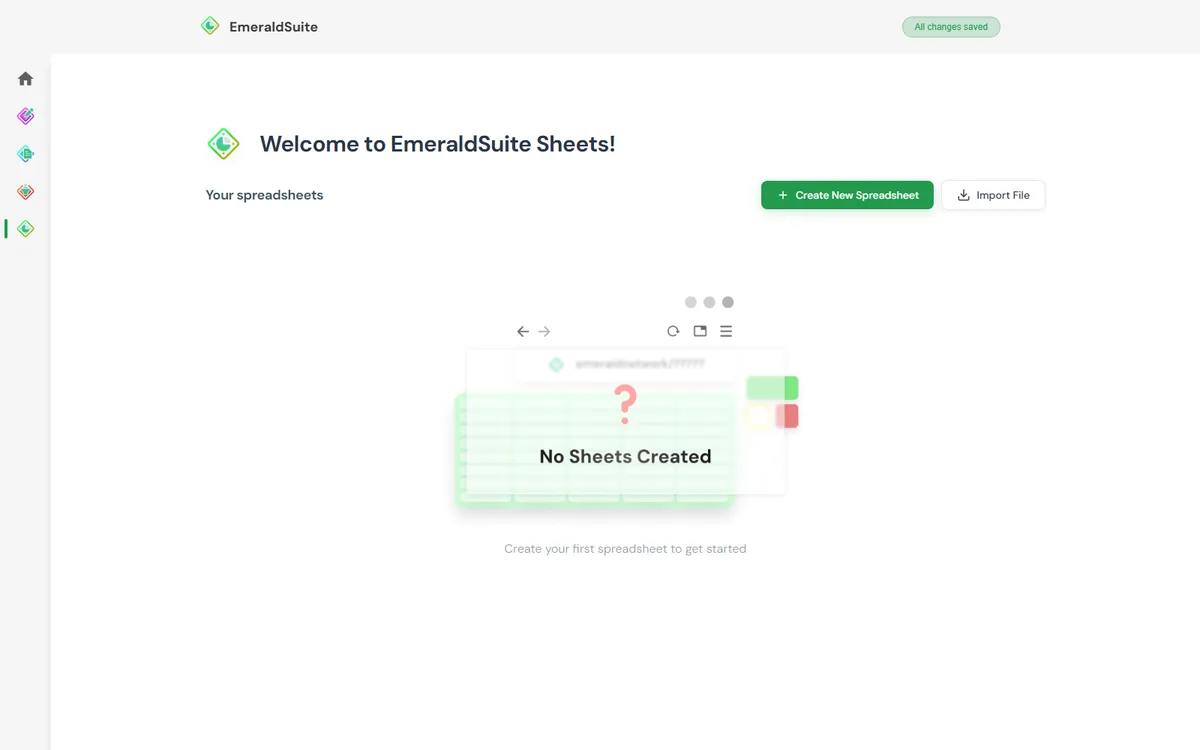
Empty workbook to a finished one
- Open /sheets and click Create New Spreadsheet.
- Click a cell and start with
=. Type=SUM(A1:A9)and press Enter. - Fill a column by dragging the small square at the corner of the selection — relative references shift for you.
- Name a range so the formulas read properly: select it, then Insert → Define Name.
- Select the range and click Insert → Create Chart. Pick a type and press Insert.
- Add a note on a cell with Shift+F2 — it travels into XLSX as a comment.
- Export with File → Export as Workbook (.xlsx).
Ribbon tabs
| Tab | Groups and controls |
|---|---|
| File | Backstage overlay: rename, delete, close, import, and export to XLSX or CSV, plus print. |
| Home | History · Clipboard · Font · Border · Arrange · Merge & Center. |
| Insert | Charts · Insert/delete rows and columns · New, duplicate, rename and delete sheets · Tab colour · Comment · Define Name. |
| Layout | Number format · Comma style · Increase/decrease decimals · Cell styles gallery. |
| Data | Sort A→Z / Z→A · Remove Duplicates · Find · Go To · Trace Precedents / Dependents / All. |
| View | Gridlines · Formula bar · Headings · Show formulas · Fit to window · zoom in / out / 100%. |
Export in the top-right of the ribbon is a shortcut for exporting the active sheet as CSV.
The formula bar and name box
| Element | Purpose |
|---|---|
| Name Box | Type an address or range and press Enter: A1, B2:C9, Sheet2!A1 or a named range. Esc reverts. |
| Formula bar | Edit the active cell as a formula, with autocomplete and an argument tooltip. Click fx to browse all 96 functions. The expand chevron gives you a taller bar. |
| Status bar | Shows Count: N for the selection, the current zoom, and the sheet navigation buttons. |
Formulas
Start any cell with =. References update automatically when you
insert or delete rows, columns or sheets, so formulas survive structural edits.
=SUM(Sales2024)
=IF(B2>100, "high", "normal")
=SUMIFS(Q1:Sales, Q1:Region, "EU")
Function library
| Category | Count | Examples |
|---|---|---|
| Math & Trig | 33 | SUM, SUMIF, SUMIFS, ROUND, ROUNDUP, CEILING, FLOOR, POWER, ABS, SQRT, MOD, RAND, RANDBETWEEN |
| Text | 19 | CONCATENATE, LEFT, RIGHT, MID, LEN, UPPER, LOWER, TRIM, SUBSTITUTE, TEXT, SPLIT |
| Date & Time | 16 | TODAY, NOW, DATE, YEAR, MONTH, DAY, HOUR, DATEDIF, EOMONTH, NETWORKDAYS |
| Lookup & Reference | 12 | VLOOKUP, HLOOKUP, XLOOKUP, INDEX, MATCH, OFFSET, INDIRECT, CHOOSE |
| Logical | 10 | IF, IFS, AND, OR, NOT, XOR, TRUE, FALSE, IFERROR, SWITCH |
| Financial | 5 | PMT, FV, PV, RATE, NPER |
| Sparkline | 1 | SPARKLINE — draws a mini chart inside a cell |
Errors are reported the way you expect: #DIV/0!, #VALUE!, #REF!, #NAME?, #NUM!, #N/A, #NULL! and #CIRCULAR!.
Number formats
Pick from General, Number, Currency, Accounting, Short Date, Long Date, Time, Percentage, Fraction and Text. The comma button applies a thousands separator and two decimals; the ± buttons change decimal places between 0 and 10.
Cell styles
Twelve presets: Normal (clears all formatting), Good, Bad, Neutral, Input, Output, Heading 1, Heading 2, Total, Warning, Note and Currency. Six show in the ribbon; More opens the full gallery.
Charts
- Select the range you want to chart — or leave the selection alone and type a range in the chart pane.
- Click Insert → Create Chart.
- Pick a type: Column, Bar, Line, Pie or Scatter. Each type explains when to use it.
- Set the Title, Data range, whether series are in rows, axis titles, and label position (Outside end, Inside end, Center).
- Watch the live Preview, then click Insert — or Apply when editing.
Charts float over the grid. Drag the body to move one, drag the corner to resize it, and double-click to reopen the editor. Right-click for Edit Chart or Delete Chart. The Series list lets you override an individual series' colour, name, type and order.
Comments
Select a cell and press Shift+F2 (or Insert → Comment) to add one. Comments form threads with replies, and each thread can be resolved or deleted. The pin marker on the cell opens the thread.
Named ranges
- Select the cells you want to name.
- Click Insert → Define Name.
- Type a name such as
Sales2024and confirm the range.
Names work in formulas and in the Name Box. Renaming a sheet rewrites every formula and named range that referenced it.
Auditing formulas
| Tool | Shows |
|---|---|
| Trace Precedents | Arrows from the cells the active formula reads. |
| Trace Dependents | Arrows to the formulas that read the active cell. |
| Trace All | The full dependency chain across the workbook, including cross-sheet links. |
| Remove Duplicates | Drops duplicate rows from the selection. |
Command palette
Press Ctrl+K to search every ribbon command in one box. Type to filter, ↑/↓ to move, Enter to run, Esc to close.
Managing sheets
- Add with the + button, Rename by double-clicking the tab or pressing F2, Reorder by dragging the tab.
- Right-click a tab for Insert, Delete, Rename, Duplicate, Move Left/Right, Tab colour, Hide and Unhide.
- A workbook holds up to 10 sheets; sheet names are limited to 30 characters and must be unique.
- You cannot delete the only sheet, or hide the last visible one.
- Hidden sheets are skipped by XLSX export and by the sheet navigation buttons.
Import and export
| Direction | Format | Notes |
|---|---|---|
| Import | .csv .txt .tsv | Delimiter is detected automatically. Values, numbers, dates and percentages are typed on import. Each file becomes a new sheet. |
| Import | .xlsx .xlsm | One sheet per workbook sheet. Formulas, values, merges, comments, frozen panes, hidden rows and columns, and column/row sizes are preserved, together with the full cell formatting — fill, font name, size, colour, bold, italic, underline, strike, all four borders, alignment, indent, wrap and number format. |
| Export | .xlsx | Everything above, written the same way: colours and formatting travel with the file, so a workbook exported here opens in Excel looking the way it looked here. Hidden sheets are skipped. Needs an internet connection the first time. |
| Export | .csv | The active sheet's displayed text, UTF-8 with a BOM so Excel opens it correctly. |
| Export | Print / PDF | Builds a print-ready layout including formatting, merges, sizes and up to 20 charts, then opens the browser print dialog — choose "Save as PDF" there. |
Keyboard shortcuts
| Shortcut | Action |
|---|---|
| Ctrl+Z / Y | Undo / redo (50 steps) |
| Ctrl+X C V | Cut / copy / paste |
| Ctrl+B I U A | Bold, italic, underline, select all |
| Ctrl+F / H / G | Find / replace / go to |
| Ctrl+S / P / O / N | Save now / print / open saved documents / new workbook |
| Ctrl+K | Command palette |
| Ctrl+` | Show formulas instead of results |
| Ctrl+; / Shift+; | Insert today's date / current time |
| Ctrl+Home / End | Jump to A1 / the last used cell |
| Ctrl+arrows | Jump to the edge of the data block |
| Ctrl+PageUp / PageDown | Previous / next sheet |
| F2 / Shift+F2 | Edit in place / add a comment |
| F4 | Repeat the last command — or toggle absolute references while editing a formula |
| F9 | Recalculate the whole workbook |
| Ctrl+wheel | Zoom (30% – 400%) |
Right-click menus
- Cell — cut, copy, paste, insert/delete rows and columns, comment, merge, unmerge, trace precedents and dependents.
- Row header — insert, delete, row height, autofit, hide and unhide rows.
- Column header — the same set for columns.
- Sheet tab — insert, delete, rename, duplicate, move, tab colour, hide, unhide.
- Chart — edit or delete.
Behaviour and current gaps
- Autosave runs about 0.9 seconds after you stop typing; the pill reads Saving… then All changes saved.
- Drag the small square at the corner of a selection to fill down or across, shifting formula references as it goes.
- Sheets only stores workbooks in IndexedDB — there is no localStorage fallback, and a failed save tells you so.
- A double underline exports as a single underline; Excel's file format only records the distinction on a handful of style features and that is one of them.
EmeraldStudio Flowchart
A visual programming environment — build an algorithm from shapes, then run, step and debug it.
Flowchart is a programming environment you build by drawing. Statements are shapes, connections are the flow, and you watch the program run through the same canvas — which makes it a direct way to see what code is doing, and to teach logic to someone who has never written any.
The language is Flowgorithm-compatible, so expressions such as
^, mod,
div and and/or/not behave
the way you would expect from elsewhere.
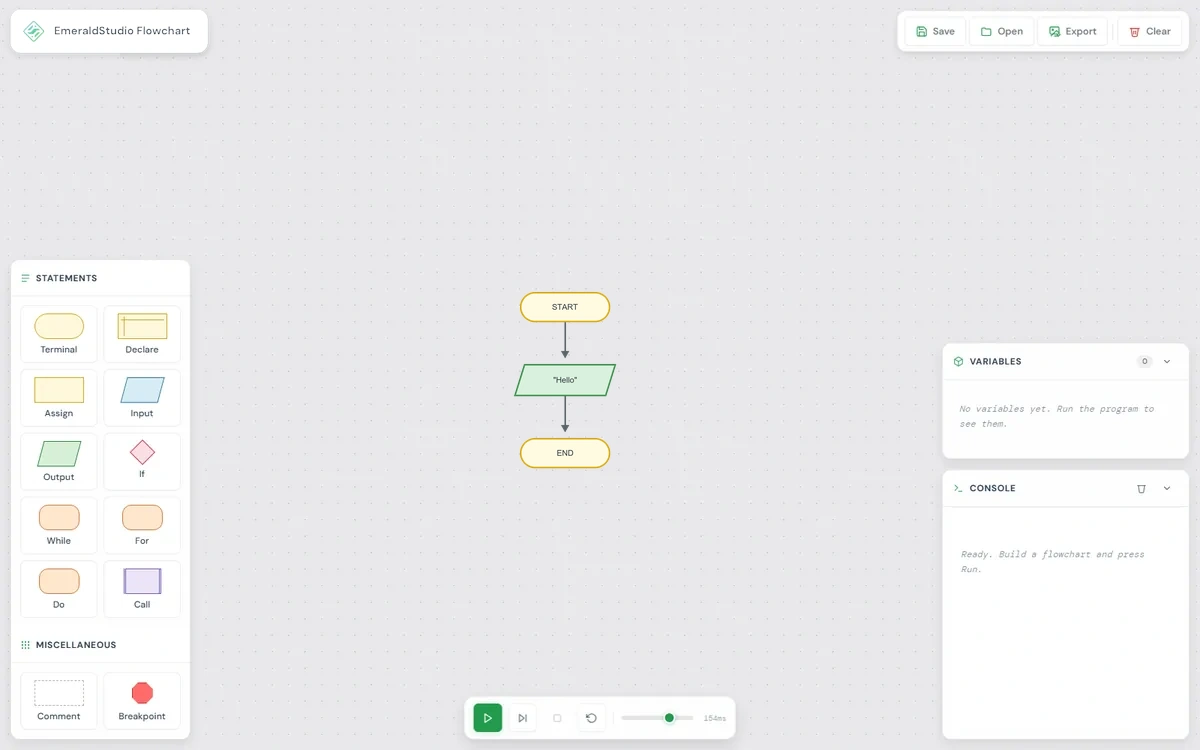
Your first program, end to end
- Open /flowchart. A starter template is already on the canvas: Start → Output "Hello" → End.
- Press Run. Hello appears in the Console — that is the whole loop working.
- Click Input in the palette, then drag it onto the canvas. Its dialog asks which variable receives the value.
- Add a Declare shape above it and set the name to match, with type Integer. Nothing runs until a variable is declared.
- Drag from the bottom handle of one shape onto the next to connect them.
- Add an If shape. It has two handles: T on the left for true and F on the right for false.
- Press Step instead of Run. One shape executes per press and the Variables panel shows every value as it changes.
- When something misbehaves, drop a Breakpoint on the path and step through again.
Build a program in 5 steps
- Click or drag a shape from the Statements palette on the left onto the canvas.
- Double-click the shape (or select it and press Enter) to set its properties.
- Drag from a green connection handle onto another shape to wire them together. Branching shapes get a T handle and an F handle.
- Press Run to execute, or Step to advance one shape at a time.
- Watch the Console for output and the Variables panel for live values.
A brand-new canvas starts with the classic Start → Output "Hello" → End template, so you can hit Run immediately.
The statement palette
| Shape | Looks like | Settings |
|---|---|---|
| Terminal | Rounded pill | Start or End. Only a terminal whose text starts with "start" can be the entry point. |
| Declare | Rectangle with a rule | One or more comma-separated names, a data type (Integer, Real, String, Boolean) and optional array allocation with a size. |
| Assign | Rectangle | variable = expression |
| Input | Parallelogram | Which variable receives the value. Input is asked for at runtime. |
| Output | Parallelogram | An expression, and whether to print a newline after it. |
| If | Diamond | A boolean expression. True goes to T, false to F. |
| While | Hexagon | A condition tested before each pass. |
| Do | Hexagon | The same shape but tested after the body runs, so it always runs once. |
| For | Hexagon | Variable, start, end, direction (increasing / decreasing) and step. The loop variable must be an Integer and is declared for you. |
| Call | Rectangle with side bars | A function name and comma-separated parameters. |
Also in the palette
- Comment — a dashed box for notes. Never executes and cannot be connected to.
- Breakpoint — a red octagon marked B. Execution pauses when it is reached.
Connecting shapes
- Every executable shape has a bottom handle. Branching shapes (If, While, Do, For) have a left T handle and a right F handle instead.
- Dropping a connection onto a Start terminal, a Comment or a Breakpoint is refused.
- Left-click a connection to splice a new statement into it — Assign, Declare, Input, Output, If, Call or Comment.
- Right-click a shape for Edit Properties, Duplicate, Disconnect True / Disconnect False and Delete.
- Right-click blank canvas to add a statement right where you clicked, or to copy the page link and read canvas info.
Running and debugging
| Button | What it does |
|---|---|
| ▶ Run | Clears the console and variables, then executes the program until it ends, hits a breakpoint or errors. |
| ⏭ Step | Executes exactly one shape per press. Pressing it on a fresh canvas starts the program for you. |
| ■ Stop | Ends execution. Only enabled while running. |
| ↺ Reset | Stops, clears the console, variables and execution state. |
| Speed slider | Controls how fast Step advances, from 5 ms to 500 ms per shape. |
Expression syntax
Expressions are Flowgorithm-compatible, so ^ is power, mod and div are integer operators, and/or/not/xor work as expected, & concatenates strings, and single = compares. Unicode operators (≠ ≤ ≥ × ÷) are accepted too.
Built-in functions
| Group | Functions |
|---|---|
| Maths | sqrt, abs, floor, ceiling, round, power, max, min, random, randomseed, sin, cos, tan, arcsin, arccos, arctan, log, log10, logten, exp |
| Text | length, char, charat, ascii, asc, chr, substring, toupper, tolower, trim, indexof |
| Conversion | tointeger, toreal, tostring, tofixedstring, isinteger, isreal, isstring, isboolean, isnumber |
total = total + (price * qty)
Output("Score: " + score + " of " + max)
Canvas navigation
- Hold Space and drag, or use the middle mouse button, to pan.
- Ctrl+wheel zooms between 40% and 250% around the cursor.
- Delete removes the selected shape, Enter edits it and Esc cancels a connection or closes a dialog.
Files
| Button | File | Notes |
|---|---|---|
| Save | flowchart.emeraldcore | A commented JSON file you can edit by hand and share. |
| Open | .emeraldcore | Loads a saved flowchart back onto the canvas. |
| Export | flowchart-YYYY-MM-DD.png | A 2× resolution PNG for putting a diagram into a document or slide deck. |
| Clear | — | Wipes the canvas back to the starter template, after a confirmation. |
Your work also autosaves continuously — close the tab and come back and the canvas is restored.
Language rules and current gaps
- Variables are strict: assign to or input into something you never declared and the run stops with an error telling you to add a Declare.
- Arrays are declared per name and accessed with index syntax, including an expression as the index.
- A loop that runs more than 100,000 iterations is stopped and reported as a possible infinite loop.
- There is no undo/redo and no multi-select yet — duplicate a shape if you want a variation.
Text chat
Model choices, web search, attachments, image tools, quizzes and memories.
This is a hosted assistant: the one part of the suite that needs a connection and sends what you type. In exchange it does the things the other four apps cannot: read a PDF you attach, look something up while it answers, generate an image, quiz you, and remember a detail for next time.

Your first conversation
- Open /aichat. The welcome asks four things — a name, a photo, whether to import memories from another assistant, and a theme (System, Dark or Light). All four can be changed later in Settings.
- Pick a model from the name at the top. EmeraldCore Auto is a sensible default; switch to Astra or Ruby when you want the deepest reasoning.
- Type in the box and press Enter. Shift+Enter adds a newline. The welcome screen also offers three quick-action cards — Quick Setup, Write or Edit and Look Something Up — which send a starter prompt for you.
- Attach something with +, or paste an image straight in. PDFs and Word documents are read, not just stored.
- Say "remember that I present on Thursdays". The badge under the reply confirms it saved.
- Ask it to write something, then open the card it gives you straight into Notes or Docs.
Choosing a model
Click the model name at the top to open the picker. EmeraldCore families are listed strongest first:
| Model | Tier | Best for |
|---|---|---|
| EmeraldCore Auto | — | Lets the assistant pick the right model for each question. |
| EmeraldCore Magnum | V4.5 | Powerhouse all-rounder: fast, sharp reasoning for demanding everyday tasks. |
| EmeraldCore Astra | V4.2 | Frontier flagship: deep reasoning, long multi-step tasks, cross-domain work. |
| EmeraldCore Ruby | V4.2 | Vision, data science, scientific analysis, structured output. |
| EmeraldCore Gamma | V4.1 | Maths, code and hard logic. |
| EmeraldCore Diamond | V4 | Creative strategy, planning, long-form writing. |
| EmeraldCore Gold | V4 | Research, fact-checking, in-depth analysis. |
| EmeraldCore Kappa | V3.5 | Versatile: web, roleplay, basic maths. |
| EmeraldCore Starlight | V3 | Balanced everyday chat and quick tasks. |
| EmeraldCore Cream | V2 | Fast, lightweight answers for simple questions. |
Thinking mode has its own toggle next to the composer — turn it on for problems that need a chain of thought. It is slower but more thorough. Responses that get cut off mid-answer continue automatically, up to four times.
Reading a response
Thinking panel
Collapsed by default. Click to expand the model's thinking summary; it names how long it thought once finished.
Working panel
Shows when the assistant is searching or reading sources, with chips naming each page it used. Citations appear as superscript badges — click one to see the source.
Follow-up chips
Up to four suggested next questions render under the reply. Click one to ask it immediately.
Rich output
Markdown, tables, syntax-highlighted code, maths formulas, hand-drawn style charts and flowcharts all render inline.
Like / dislike
Two buttons under the newest reply only, so you can rate the answer that matters.
Running code
Code blocks have Run and Copy buttons. Run opens a sandboxed preview with its own console — HTML, CSS and JavaScript blocks are combined.
Editing, regenerating and branching
- Right-click one of your messages → Edit. Change the text, press Submit, and the assistant answers the new version. The old answer stays in the history.
- Right-click the latest assistant message → Regenerate for a fresh answer to the same question.
- When a message has more than one version, ‹ 2 / 3 › arrows appear underneath so you can compare them.
- Right-click any message for Copy text and Show Used Model.
Web search
Search turns on by itself when a question needs current information — anything mentioning looking something up, latest, today, weather, news, a price, or when you paste a URL. You will see a Searching the web… indicator while it works. Results are cited inline, and a GitHub repository link is read directly including its README.
Attachments
- Use + in the composer, drag files in, or paste an image straight from your clipboard.
- Images up to 25 MB, other files up to 100 MB.
- Large images are downscaled automatically before sending.
- PDF, Word, PowerPoint, text, spreadsheets, CSV and ZIP archives are all accepted, and office documents are unpacked in your browser to extract their text.
- Previews open beside the chat — zoomable for images, paginated for slide decks, syntax-highlighted for code.
Everything you have ever attached is listed in the Library, filterable into All files, Images, Documents and Archives.
Images
Generate
Ask for a picture and the assistant creates one. The card shows Generating image until it finishes, then the image appears with a Download image button.
Edit
Press Edit this image on a generated picture, describe the change, and send. A chip in the composer shows which image is being edited. Source images must be 512 × 512 or smaller.
Search
Ask for existing pictures and the assistant will surface real results instead of generating one.
Quizzes
Ask the assistant to quiz you and you get an interactive widget instead of a wall of text. Five question types are supported: multiple choice, multi-select, matching pairs, fill in the blank, and essay. Answer everything, press Submit, and each question reveals its explanation along with your score.
Memories
The assistant keeps facts about you that make later answers better — your timezone, your stack, your dog's name. A badge under the reply tells you when it learned something. Manage everything from Settings → Memories, where each memory can be edited or deleted, or wiped completely. Live voice uses the same memories.
Temporary chat
The thermometer button next to the model name toggles Temporary Chat. Nothing from that conversation is saved to your history once you start a new one — useful for one-off questions about something private.
Sharing and importing chats
Right-click a conversation in the sidebar → Share Link. The entire chat is compressed
into the link itself, so it is never uploaded anywhere — the data lives in the part of the
URL after the # that browsers never send to a server.
Opening such a link while signed in adds the chat to your own history as a new conversation;
nothing you already have is replaced.
Working with EmeraldSuite from chat
Ask the assistant to write something and it can hand you a card that opens the result straight into Notes, Docs, Slides or Sheets — and, when you ask it to change something, it can apply the edit to a file you already have. Either way a badge tells you what it did.
Settings
| Group | Settings |
|---|---|
| Profile | Display name, profile photo (upload or remove). |
| Appearance | System, Dark or Light. |
| Storage | A live meter of how much space this app is using in your browser. Turns red at 90%. |
| Data & Memory | Open Memories, or Clear All Chats to remove every conversation, file and memory at once. |
Keyboard shortcuts
| Shortcut | Action |
|---|---|
| Enter | Send the message |
| Shift+Enter | New line |
| Esc | Close the context menu, the model dropdown or the model dialog |
| Enter / Space | Toggle the Thinking or Working panel when it has focus |
Privacy
- Conversations, files, settings and memories are stored in this browser and sync with your EmeraldNetwork account when you are online.
- Prompts, display name, saved memories and attachments are sent to the hosted model when you use chat. Live voice also sends audio.
- AI Chat requires an EmeraldNetwork sign-in and an internet connection. The page contains no API key and uses no analytics script.
- If a request is blocked for violating EmeraldNetwork usage policies, that conversation is deleted from your history.
Live voice chat
Talk to EmeraldBot in real time — it listens, interrupts, and answers out loud.
The same assistant, spoken. Voice activity detection cuts it off the moment you start talking over it, so interrupting works the way it does in a conversation.
It uses the same memories as text chat, so anything you have told it before is already in context. The transcript is saved as a normal conversation when the call ends.
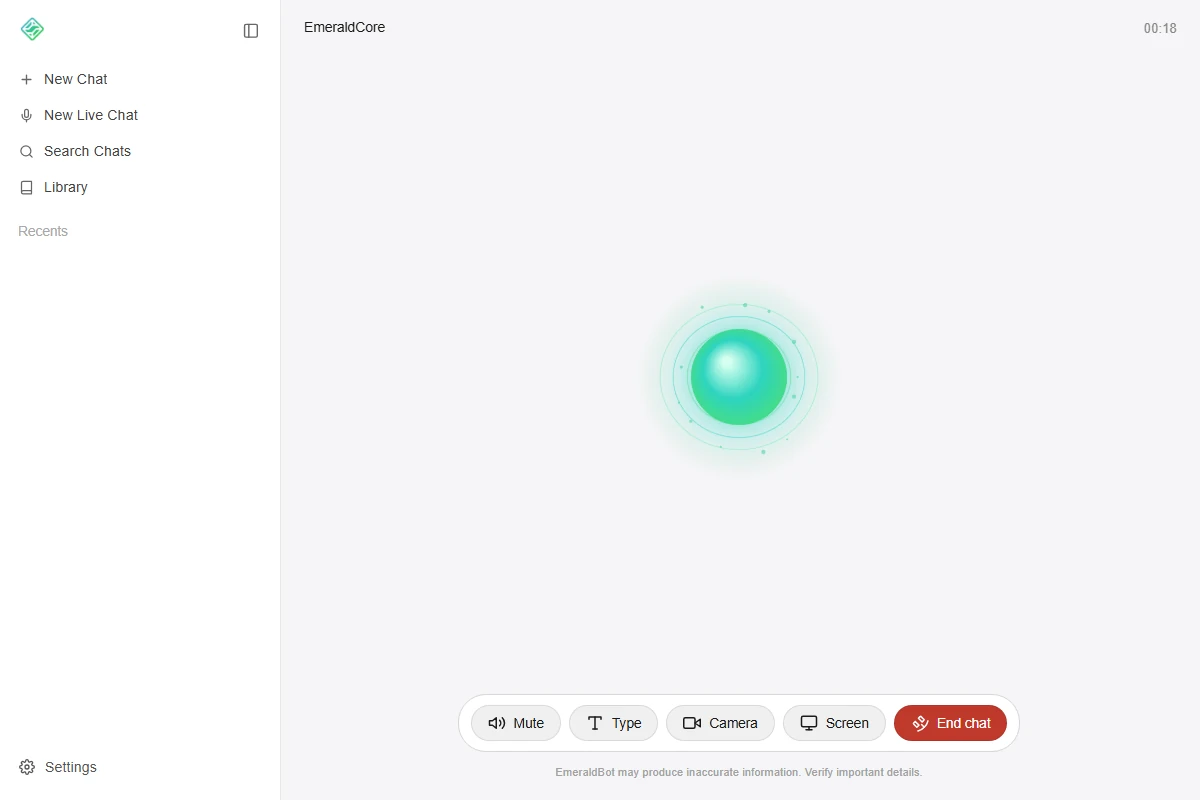
Starting a call
- Click New Live Chat at the top of the sidebar.
- Click Start live chat and allow microphone access when your browser asks.
- Wait for the chime — the orb animates once the connection is live.
- Just talk. When you finish a sentence the assistant replies.
- Click End chat when you are done. The full transcript is kept as a normal conversation.
Controls
| Control | What it does |
|---|---|
| Mute / Unmute | Stops sending your microphone. This mutes you only — EmeraldCore keeps talking and you keep hearing it. The orb greys out with a strike-through so you can see at a glance that you are muted. |
| Type | Replaces the call controls with the normal message box, so you can write instead of speak. Enter sends, Shift+Enter starts a new line. The assistant answers out loud exactly as it would to speech, and the microphone is held off the line while a typed message is in, so background noise cannot be mistaken for you asking something. Press the × or Type again to go back to talking. Attachments are not available during a live call. |
| End chat | Closes the call, commits anything the assistant was mid-sentence on, and saves the transcript. It only appears once the call is running, so there is never a button on screen that does nothing. |
| Call timer | Shows mm:ss in the top bar. It keeps counting if you leave and re-enter the same live chat. |
During a call
- You can talk over it. Voice activity detection notices you starting to speak while it is answering and it stops, then answers the new thing.
- Noise suppression, echo cancellation and auto gain are on, so it works in a normal room.
- The transcript shows the last two turns while the call runs and the whole conversation once you end it.
- Live chats are context-aware — your display name and memories come with the session.
- Reopening a finished live chat drops you back into the transcript, not a new call.
- If the connection drops, it retries up to four times with a short backoff before showing an error.
EmeraldBot for Discord
A command reference for moderation, music, utilities, information and fun.
This repository contains a static command reference for EmeraldBot for Discord, but not the bot implementation. The command list and behavior below describe the published reference; runtime availability and permissions are controlled by the hosted bot.
Every command starts with e!. Arguments in
<angle brackets> are required; ones in
[square brackets] are optional. Where a command takes a
user, you can mention them or give their ID.
Command browser
Moderation — 13 commands
Stop a specific member from using a specific word. Combine with e!unbanworduser to undo.
e!banworduser <user> <word>
Allow a member to use the words you blocked for them.
e!unbanworduser <user>
Mute a member so they cannot speak. A reason is optional and shown in the audit trail.
e!mute <user> [reason]
Lift a mute.
e!unmute <user>
Bulk-delete recent messages from the channel.
e!purge <amount>
Lock the current text channel so only staff can post. Run it again to unlock.
e!chatlock
Toggle chat moderation in the channel. Toggles on each run.
e!chatmod
Lock the voice channel you are in so members cannot join.
e!voicelock
Remove a member from voice channels without banning them.
e!voicekick <user>
Give every new member a role automatically — the classic "Member" or "unverified" setup.
e!autorole <enable | disable> <role>
Rename a role. Handy after a rebrand or tidy-up.
e!renamerole <role> <new name>
Send server events to a chosen channel so you have a record of joins, leaves and deletions.
e!log <enable | disable> <channel>
Post a welcome message for new members and a goodbye message when they leave.
e!joinleave <enable | disable> <channel>
Music — 8 commands
Play a song or a whole playlist. Search terms and links both work.
e!play <query | url>
Skip the current track, or several in a row.
e!skip [amount]
Pause playback.
e!pause
Resume a paused track.
e!resume
Stop playback and empty the queue.
e!stop
Show what is coming up. Long queues page.
e!queue [page]
Repeat the current track or the entire queue.
e!repeat <off | on | all>
Show the track that is playing right now.
e!nowplaying
Utility — 9 commands
Mark yourself as away. Optional reason shown next to your name.
e!afk [reason]
Start a poll in the channel with your question as the prompt.
e!poll <question>
Solve a maths expression. Works in DMs.
e!calc <expression>
Talk to EmeraldBot without leaving Discord.
e!ai <prompt>
Wipe what the bot remembers about you.
e!resetai
Register your birthday. You can leave the year out and it is kept private.
e!setbirthday <dd/mm/yyyy | dd/mm>
Delete your stored birthday.
e!removebirthday
See whose birthday is coming up next in the server.
e!nextbirthday
Toggle private voice mode, so joining a voice channel requires approval.
e!voiceprivate
Info — 7 commands
Show the bot's own help menu.
e!help
Check the bot's latency.
e!ping
Show details about the server — member counts, channels, boost level.
e!serverinfo
Show a member's profile: roles, join date, account creation date.
e!userinfo [user]
Show a role's colour, member count and position.
e!roleinfo <role>
Show a member's avatar, or yours if you leave the argument out.
e!avatar [user]
See which words a member is currently blocked from using.
e!banwordlist <user>
Fun — 4 commands
Flip a coin.
e!coinflip
Roll a six-sided die.
e!dice
Make the bot repeat your message — in your own voice colour if you have one.
e!say <text>
Play rock-paper-scissors against the bot.
e!rps
Recipes
A clean onboarding flow
- e!autorole enable @Member — so everyone gets a role on join.
- e!joinleave enable #welcome — so arrivals are greeted.
- e!log enable #mod-log — so deletions are recorded.
- e!chatlock in #announcements whenever you post something important.
Quieting a channel
- e!chatlock to freeze the channel.
- e!purge 50 to clear the spam.
- e!mute @user spamming for the people behind it.
- e!banworduser @user spamword if it is one specific phrase.
- e!chatlock again to reopen.
A music room
- Join a voice channel and invite EmeraldBot.
- e!play lofi hip hop — or paste a link.
- e!queue to see what is lined up, e!skip to move on, e!repeat all to loop the queue.
- e!nowplaying shows the current track; e!stop clears everything when the night is over.
A birthday channel
- Members run e!setbirthday dd/mm privately.
- Anyone can run e!nextbirthday to see who is next.
- Moderators use e!banwordlist and e!resetai if someone wants their stored data removed.
Permissions
The bot asks for a broad permission set when you invite it, because music playback needs Connect and Speak in voice, moderation needs Manage Messages and Manage Roles, and logging needs Manage Channels. Restrict the bot's role to the channels it actually needs and put it above your member roles so it can act.
EmeraldEssentials
A Minecraft server plugin suite, still in development.
What it is
EmeraldEssentials is described on the site's product page as a Minecraft server plugin. This repository does not include the plugin implementation, so compatibility, features, and operational requirements cannot be verified from its source.
For current availability and support, use the contact details on the product page.
System status
Health and 90-day uptime for EmeraldCore, the website and the Discord bot.
Three things can be down at once — the model behind the AI features, the website, or the Discord bot — and this page tells you which. Check it before reporting a problem, because most reports turn out to be an incident already listed here.
The status page is the place to look first when something is not working.
Services
| Service | Covers |
|---|---|
| EmeraldCore | The core system behind the AI features. |
| Website | The EmeraldNetwork site and all its apps. |
| EmeraldBot | The Discord bot. |
What the colours mean
| Badge | Meaning |
|---|---|
| Operational | Running normally. The 90-day bar underneath is entirely green. |
| Degraded | Working, but slower or partly broken. Yellow segments on the bar show which days. |
| Outage | Not working. Red segments mark the affected days. |
Reading the page
- Each service card is collapsible and lists its components individually.
- The bar holds 91 days. Hover any segment for the exact date.
- The percentage is calculated from the bar, so it is always consistent with what you see.
- Ongoing problems appear under Current Incidents with an Ongoing badge and the date they started.
- Fixed problems move to Previous Incidents, grouped by month, with their duration.
- The header shows the overall verdict — All Systems Operational, Partial Outage or Status Unavailable — and the time it last refreshed.
EmeraldNetwork account
Sign in, manage devices, and sync supported work across your devices.
The Suite hub, Notes, Docs, Slides, Sheets, Flowchart and AI Chat are guarded by the browser sign-in check. Signed-out visitors are sent to /account and returned to the requested page after signing in. App data is saved in this browser; supported data also syncs to your account when online. Sheets workbooks are stored locally and are not included in account sync.
Create an account or sign in
- Open the app you want to use. If you are signed out, it redirects you to /account and remembers where to send you afterward. You can also open the account page directly.
- Choose Create account or sign in. New email accounts need a password of at least 8 characters; Google sign-in is also available.
- After authentication, you return to the app. Account sync starts in the background when you are online.
Account dashboard
- Overview — see your profile, signed-in devices and storage summary, with shortcuts to finish setting up your profile.
- Personal info — edit your display name, profile photo, birthday, gender, phone number and location details. Photos must be JPG or PNG and no larger than 2 MB.
- Devices — review signed-in browsers and devices, sign out one device, or sign out every other device.
- Security — review signed-in sessions and available sign-out controls. Email password changes and resets are not provided by the account API in this repository.
- Data & privacy — download an
.emeraldcorecopy of your account data, review or clear activity history, or reset synced account data. - Storage — view an estimate of this browser's EmeraldNetwork storage use, broken down by app.
Activity history and storage
Activity history records actions across EmeraldNetwork apps and can sync with your account. Clearing it removes the history from your signed-in devices; it does not delete your files. Clearing browser data is different: it removes the local browser copy and session, while supported data already synced to the account can be downloaded again after you sign in. The Storage page reports browser storage usage and the quota the browser makes available, so its numbers can vary by browser and device.
What syncs
Account sync includes supported Notes, Docs, Slides, Flowchart and AI Chat data, plus account profile data. Changes are saved locally first and sync while you are signed in and online; offline edits wait for a connection. Sheets workbooks use a separate database and stay in that browser, so export and import them to move them to another device.
Shared reference
Where your files live, what works offline, and what is not implemented yet.
Look-ups rather than walkthroughs: where your files live, what still works without a connection, the limits worth knowing before you hit them, and what to do when something looks wrong.
Keyboard shortcuts
These work across the wiki itself. App shortcuts are listed on each app's own page, because they differ between apps.
| Keys | Action |
|---|---|
| Ctrl+K | Jump to the search box, from anywhere |
| Esc | Clear the search, or close the sidebar on a phone |
| Enter / Shift+Enter | While following a heading in "On this page" |
| Back / Forward | Work as expected — clicking pushes history, scrolling does not |
Where your files are stored
Apps store work locally in browser storage. Notes, Docs, Slides, Flowchart and AI Chat
use EmeraldCore's shared database, emeraldcore.storage.suite,
which lets the hub list supported files and sync supported data to the signed-in account.
Sheets keeps its own,
emeraldcore.storage.suite.sheets, because workbooks are
structured differently.
Export, by app
| App | Formats | Where | Keeps |
|---|---|---|---|
| Notes | Share link | Export Note | Formatting and colour. Very long notes exceed the URL limit and cannot be linked. |
| Docs | PDF, HTML, TXT, print | File menu | PDF is a faithful image of the pages; HTML is text plus styling. |
| Slides | PPTX, PDF, SVG, print | File menu | PPTX keeps text, shapes and images. It drops video, audio, drawings, links, comments, transitions and animations. |
| Sheets | XLSX, CSV, print | File menu | XLSX keeps formulas, colours and full cell formatting, comments, merges and sizes. Hidden sheets are skipped. |
| Flowchart | .emeraldcore, PNG | File bar | The editable file keeps everything. PNG is only a picture. |
| AI Chat | Share link, .json | Right-click a chat | Full transcript including attachments. |
What works offline
The service worker uses network-first navigation and falls back to
offline.html if the network request fails. It caches
that offline page and a short list of shared shell assets; it does not pre-cache app
HTML, app scripts, or app data. An app page already loaded in a tab can still run its
loaded browser code, subject to each feature's network needs. Account sync requires a
connection and retries after connectivity returns.
- Already loaded page: browser-side editing and local reads/writes may remain available while that page stays open.
- Account features: registration, login, account sync, device actions and restoring account data call the auth Worker and need a connection.
- Connected app features: AI requests, Notes live sharing and any library or service fetched on demand need a connection.
- Cold offline navigation: the service worker displays the offline page. It does not cache app HTML or app JavaScript, so it cannot launch an app from a fresh offline navigation.
Limits
These limits are documented here only where the current implementation has a defined constraint.
| App | Limit | What happens |
|---|---|---|
| Notes | Note title 40 characters stored | You can type 70; the rest is trimmed. |
| Notes | No folders, no manual ordering | The list is newest first and cannot be rearranged. |
| Notes | One live session at a time | Leave the current one before joining another. |
| Notes | Images under 25 MB | Larger images are refused with a message. |
| Docs | Insert table 8 × 8 | Larger tables need a table pasted in. |
| Docs | 10 version snapshots | Older versions fall off the end. |
| Account | Account sync needs a connection | Local edits remain available offline and sync after reconnection. |
| Docs | Read aloud stops at 3,000 characters | Use it to spot-check the opening. |
| Docs | An imported PDF keeps its layout | Pages, margins, indents and line breaks stay where the PDF drew them, so the layout does not reflow. Text you add flows on from where it is placed. |
| Slides | Decks grow large with media | Video and audio are stored inline, so keep an eye on size. |
| Slides | Morph needs two slides | On a single slide it falls back to a fade. |
| Sheets | 10 sheets per workbook | Names are limited to 30 characters and must be unique. |
| Sheets | Zoom 30% – 400% | Use Fit to Window for a whole sheet. |
| Sheets | Double underline exports as single | Excel's format records the distinction on very few style attributes and this is one of them. |
| Sheets | XLSX needs the library once | First use downloads it; after that it is cached. CSV and printing never need it. |
| Flowchart | 100,000 iterations per run | A runaway loop stops and says so. |
| Flowchart | Variables must be declared | Assigning before declaring stops the run with a message. |
| Flowchart | No undo or multi-select | Duplicate a shape rather than expecting Ctrl+Z. |
| AI Chat | Images 25 MB, other files 100 MB | Larger files are refused client-side. |
| AI Chat | 10 variants per message | Regenerating or editing a message more than ten times is blocked. |
| AI Chat | Images to edit must be 512 × 512 or smaller | Resize before asking for an edit. |
Multiple tabs and windows
Apps talk to each other through a browser broadcast channel, so you can have the same note open twice and see edits land in both. The hub refreshes on window focus, when the tab becomes visible again, and every 60 seconds.
If something looks wrong
| Symptom | Try |
|---|---|
| The library is empty after clearing browser data | Sign in to the same account and stay online while supported data is restored. Sheets workbooks are local to the browser where they were saved and cannot be restored from account sync; import an XLSX/CSV export instead. |
| Account data has not appeared on this device | Check that you are signed in to the same account and online. Sync retries after reconnecting; Sheets is not included in account sync. |
| "Save failed" in Sheets | Sheets uses IndexedDB only, with no localStorage fallback. Private browsing or a full disk will cause this. |
| PDF or XLSX export fails | Those features download a library on first use. Reconnect and try again. |
| PDF import fails or says the library is not loaded | Same cause — pdf.js is downloaded the first time a PDF is opened. Reconnect and import again; a password-protected PDF cannot be imported. |
| A note will not finish a share link | It has grown past what a URL can hold. Split it, or use a live session instead. |
| Live sharing says "Connection Lost" | The network dropped mid-session. Reload when you are back online. |
| An app says "Reconnecting…" | Notes, Docs, Slides and Sheets show this while offline; reconnect to dismiss the notice. After 15 seconds disconnected they show a reload prompt. |
| Flowchart behaves oddly after moving shapes | Make sure the connection landed on the shape you meant — click a line to see whether it is the connection you think it is. |
A formula shows #REF! | Rows or columns were deleted after it was written. Rewriting the formula usually fixes it. |
| Nothing loads while offline | Sign in and open the app while connected, then leave its tab open before disconnecting. |
Deep links
Every file can be linked to directly. The pattern is the app path plus
?owned= and the file id, which the hub's
Copy link action builds for you.
/notes?owned=note_1735689600000_a1b2c3d4e
/docs?owned=doc_1735689600000_a1b2c3d4e
/slides?owned=pres_1735689600000_a1b2c3d4e
/sheets?owned=book_1735689600000_a1b2c3d4e
These open when the file is available in the current browser or has synced to your account. Sheets workbooks do not sync, so a Sheets link only works on a browser that has that workbook.
What leaves your device
These are the main data flows between your browser and other services.
- App data is saved in browser storage. Supported EmeraldCore data and profile changes sync to EmeraldNetwork account services while signed in and online. Sheets workbooks do not sync.
- Notes live collaboration sends the shared note and participant names and presence to Firebase Realtime Database so collaborators can follow the session and, when allowed, edit the note.
- Account profile setup may contact IP geolocation services to suggest your city, region and country. Review those suggestions before saving your profile.
- AI chat sends what you type, plus your display name, your saved memories and any file you attach.
- Live voice sends audio, the same name and memories.
- AI Chat share links put the compressed conversation after
#; browsers do not send that fragment with the page request. Notes export links put the note in a?share=query parameter, which is part of the page URL when the recipient opens it. - The Discord bot runs on Discord and sees what a bot normally sees.
- No analytics or tracking script is used by these apps. See the Privacy Policy for account and service details.
Getting help
- Ask in the EmeraldNetwork Discord server — the fastest route to a human.
- Email hello@emeraldnetwork.groups.id.
- Check system status before reporting a problem — it may already be listed.